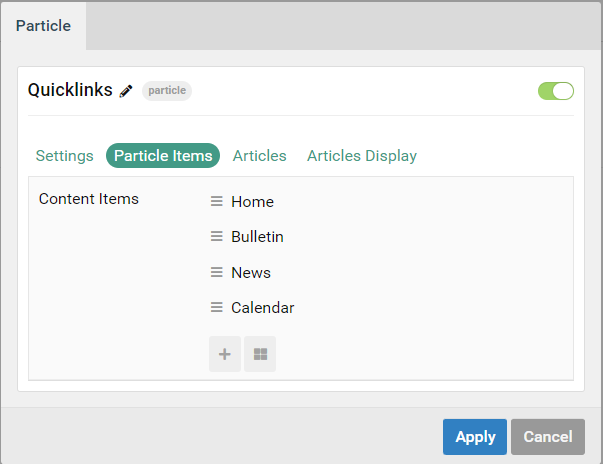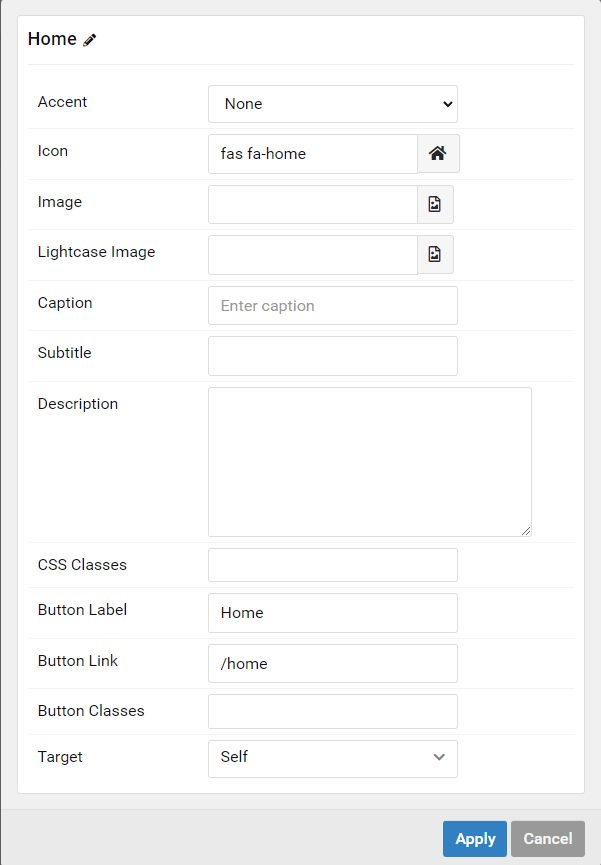
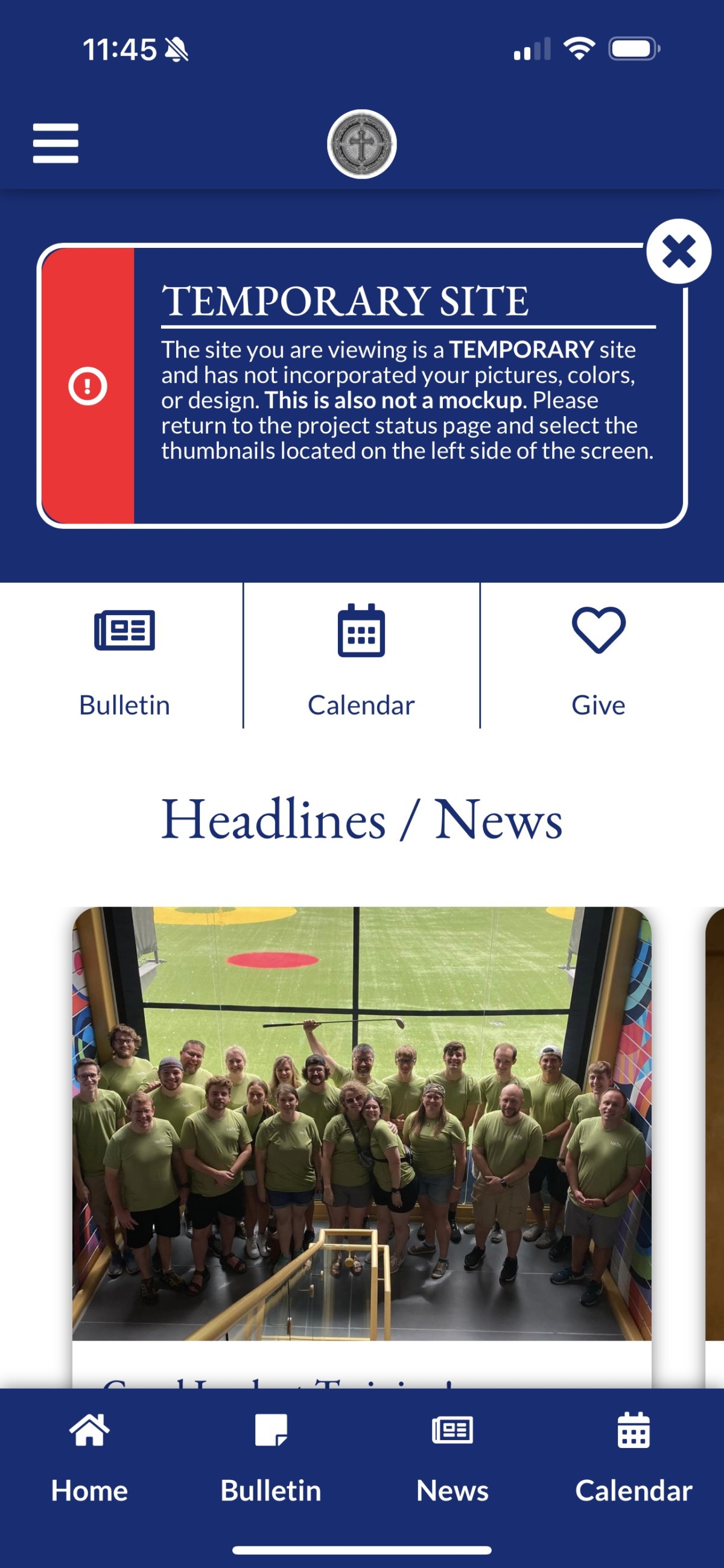
This Page is for documentation of the PWA capabilites that have been added to the master clone.
PWA Example From Master Clone
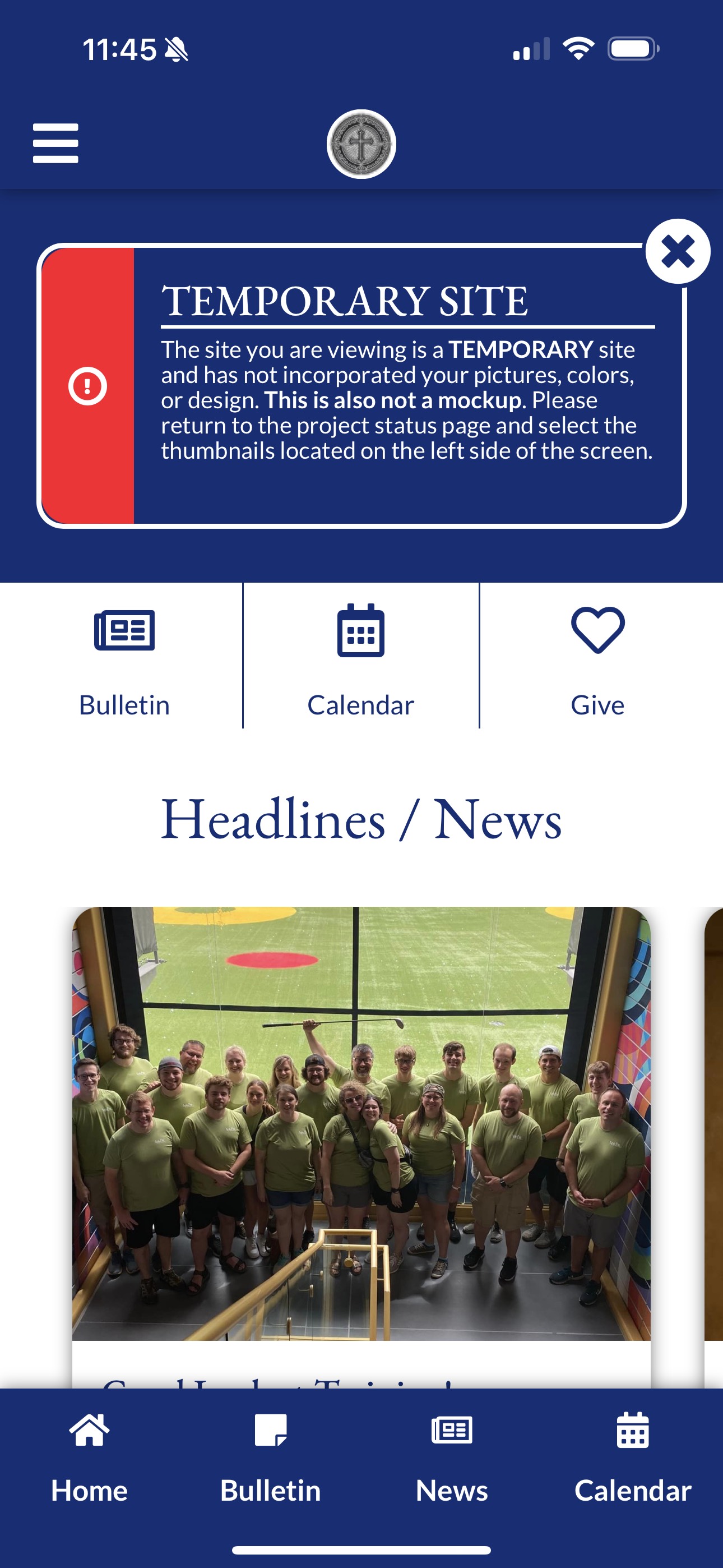
Page Settings
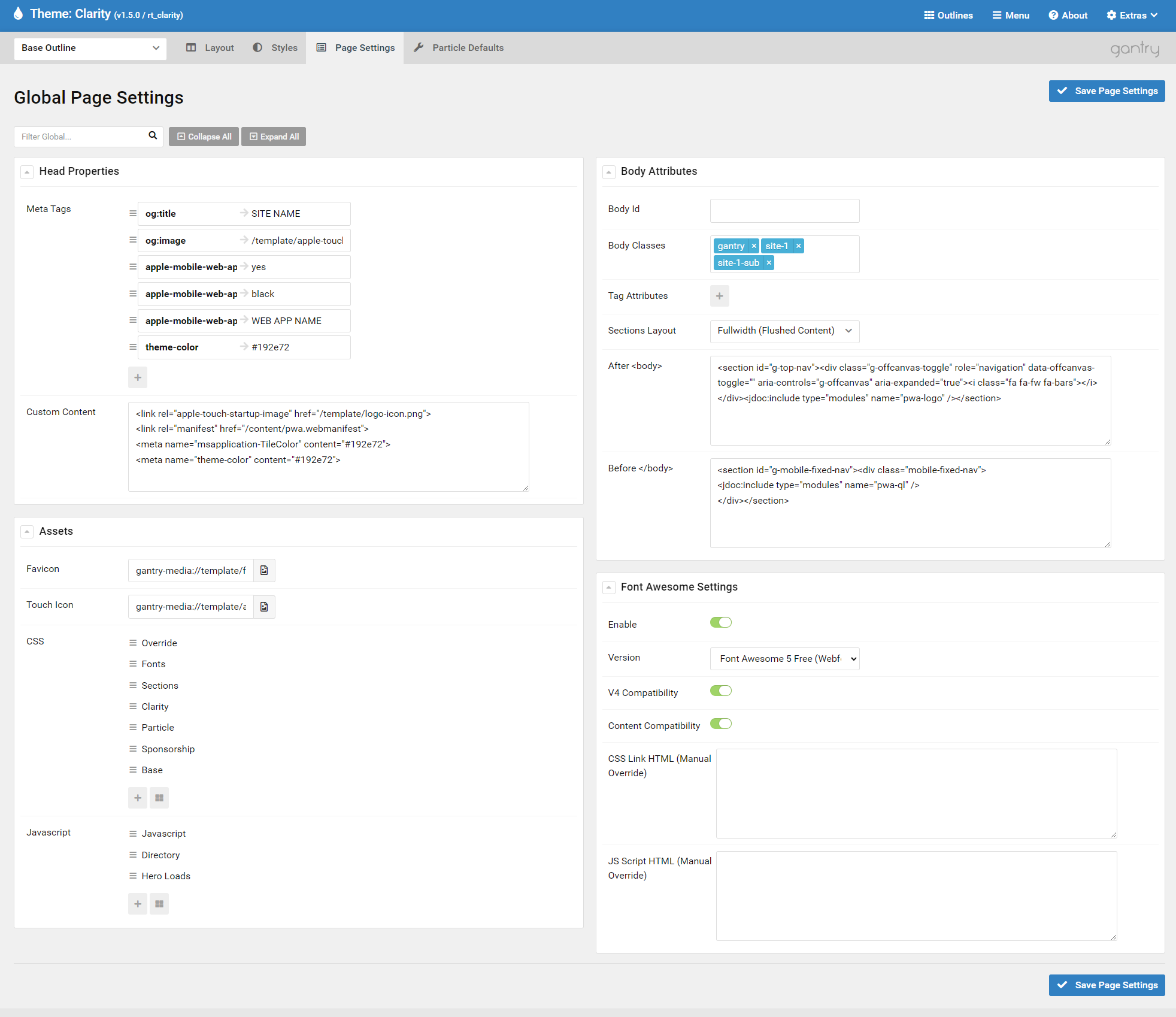
Custom Content
This information should be placed within the Custom Content Field underneath the Meta Tags settings on the Base Outline Page Settings tab.
- Set the Startup Image Path to the main logo/logo icon of the site.
- Set the manifest declaration to the path of the pwa.manifest file located within cyberduck under content/pwa.manifest. (If the site doesn't have the manifest file download here).
- Set the TileColor to the Primay Color of the site.
- Set the Theme Color to the Primary color of the site.
<link rel="apple-touch-startup-image" href="/template/logo-icon.png">
<link rel="manifest" href="/content/pwa.webmanifest">
<meta name="msapplication-TileColor" content="#192e72">
<meta name="theme-color" content="#192e72">
After <body>
Place this html within the After Body section to setup the pwa to have a static menu/logo at the top of each page. This code also places in a module position where the logo is set from a module on the site.
<section id="g-top-nav">
    <div class="g-offcanvas-toggle" role="navigation" data-offcanvas-toggle="" aria-controls="g-offcanvas" aria-expanded="true">
        <i class="fa fa-fw fa-bars"></i>
    </div>
    <jdoc:include type="modules" name="pwa-logo" />
</section>
Before </body>
Place this html within the Before /Body section to setup the pwa to have a static "quicklinks" menu at the bottom of each page. This code also places in a module position where the pwa menu quicklinks is set from a module on the site.
<section id="g-mobile-fixed-nav">
    <div class="mobile-fixed-nav">
        <jdoc:include type="modules" name="pwa-ql" />
    </div>
</section>
PWA Settings in/for Override.css
body {background-color: var(--primary-color);}
@media only screen and (max-width: 50.99rem) {
@media (display-mode: standalone) {
    #g-top-nav {
        display: flex!important;
    }
    #g-mobile-fixed-nav {
        display: flex!important;
    }
    #g-top.modern-alert-padding {
        padding: 2rem 5%!important;
    }
    body {background-color: var(--primary-color);}
    #g-offcanvas {height: calc(100% - 120pt); top: 40pt; bottom: 80pt;}
    #g-top {margin-top: 40pt!important;}
    #g-navigation .g-logo {display: none;}
    #g-top-nav .g-particle:has(.g-logo) {width: 100%;}
    #g-top-nav .g-logo {text-align: center; display: flex; align-items: center; justify-content: center; width: 100%; height: 40pt;}
    #g-top-nav .g-logo img {height: 80%; width: auto;}
    #g-page-surround .g-offcanvas-toggle {display: none;}
    #g-page-surround {background: var(--primary-color);}
    #g-top-nav {display: flex; position: fixed; top: 0; left: 0; right: 0; width: 100%; height: 40pt; background: var(--primary-color); z-index: 100; box-shadow: var(--default-box-shadow);}
    .g-offcanvas-toggle {position: fixed!important; z-index: 101; top: 0; left: 10pt; height: 40pt; font-size: 23pt; display: flex; justify-content: center; align-items: center; background: none!important; border-radius: unset; box-shadow: unset;}
    .g-offcanvas-toggle {color: var(--default-white);}
    .g-offcanvas-toggle .fa-fw {text-shadow: none;}
    #g-container-footer {padding-bottom: 80pt!important;}
    #g-mobile-fixed-nav {display: flex; height: 80pt; background: var(--primary-color); color: var(--default-white); backdrop-filter: blur(10px); -webkit-backdrop-filter: blur(10px); z-index: 100; position: fixed; bottom: 0; left: 0; right: 0; width: 100%; box-shadow: var(--default-box-shadow)}
    .mobile-nav-link {color: var(--default-white); display: flex; flex-direction: column; justify-content: center; align-items: center; text-align: center; height: 60pt;}
    .mobile-nav-link:hover {color: var(--secondary-color);}
    .mobile-fixed-nav {width: 100%; height: 60pt;}

    .mobile-fixed-nav {
        margin: 0;
        padding: 0;
        display: flex;
        width: 100%;
        align-items: center;
        overflow: hidden;
    }
    .mobile-fixed-nav .g-particle {
        margin: 0;
        padding: 0;
        width: 100%;
    }
    .mobile-fixed-nav .g-particle > div {
        margin: 0;
        padding: 0;
    }
    .mobile-fixed-nav .g-blockcontent {
        margin: 0;
        padding: 0;
    }
    .mobile-fixed-nav .g-blockcontent-subcontent {
        margin: 0;
        padding: 0;
        display: flex;
        flex-direction: row;
        flex-wrap: nowrap;
        gap: 1pt;
    }
    .mobile-fixed-nav .g-blockcontent-subcontent-block {
        margin: 0;
        padding: 0;
        flex: 1;
        position: relative;
    }
    .mobile-fixed-nav .g-blockcontent-subcontent-block-content {
        margin: 0;
        padding: 0;
        display: flex;
        flex-direction: column;
        justify-content: center;
        align-items: center;
    }
    .mobile-fixed-nav .g-blockcontent-subcontent-title-icon {
        margin: 0;
        padding: 0;
        order: 1;
        color: var(--default-white);
        font-size: 5vw;
    }
    .mobile-fixed-nav .g-blockcontent-subcontent-title {
        margin: 0;
        padding: 0;
        order: 2;
    }
    .mobile-fixed-nav .g-blockcontent-subcontent-title-text {
        margin: 0;
        padding: 0;
        color: var(--default-white);
        font-size: 4vw;
        font-family: var(--body-font-family);
    }
    .mobile-fixed-nav .g-blockcontent-buttons {
        margin: 0;
        padding: 0;
        position: absolute;
        top: 0;
        bottom: 0;
        left: 0;
        right: 0;
        height: 100%;
        width: 100%;
        opacity: 0;
    }
    .mobile-fixed-nav .g-blockcontent-buttons a {
        margin: 0;
        padding: 0;
        position: absolute;
        top: 0;
        bottom: 0;
        left: 0;
        right: 0;
        height: 100%;
        width: 100%;
        opacity: 0;
    }
}
}
PWA Manifest Explanation.
Some of these items on the PWA Manifest will need updating per site as well. The pwa.manifest file should be located in cyberduck content/pwa.manifest. (If the site doesn't have the manifest file download here).
- short_name: This is a short version of the app's name, displayed on the home screen or app launcher where space is limited.
- name: This is the full name of the application, used in places where there is more space available, such as the app store listing.
- orientation: Specifies the default orientation for the web application. The value "Portrait" ensures the app is displayed in portrait mode.
- description: A brief description of the web application. It helps users understand what the app is about.
- background_color: The background color for the splash screen when the app is launched. It ensures a seamless transition between the splash screen and the app's background.
- theme_color: The theme color for the application. This color affects the browser's address bar color when the app is opened.
- scope: Defines the navigation scope of the web application. It restricts what URLs can be viewed within the app. Here, "/" means the entire origin.
- start_url: The URL that the web app loads when it is launched. Adding a query parameter like "?source=pwa" can help track how users access the app.
- display: Specifies the display mode for the app. The value "standalone" makes the app look and feel like a native application, without browser UI elements.
- icons: An array of objects specifying the icon images that the app can use. Each object contains:
- src: The path to the icon image file.
- type: The MIME type of the icon image.
- sizes: The dimensions of the icon image.
- purpose: The usage purpose of the icon. "maskable any" means the icon can be used as a maskable icon and for any other purpose.
- dir: Specifies the text direction for the application. "ltr" stands for left-to-right, indicating the direction in which text should be displayed.
{
  "short_name": "Solutio Clone",
  "name": "Master Forge Clone",
  "orientation": "Portrait",
  "description": "Master Forge Clone Progressive Web Application",
  "background_color": "#192e72",
  "theme_color": "#192e72",
  "scope": "/",
  "start_url": "/?source=pwa",
  "display": "standalone",
  "icons": [
    {
      "src": "../images/template/apple-touch-icon.png",
      "type": "image/png",
      "sizes": "144x144",
      "purpose": "maskable any"
    }
  ],
  "dir": "ltr"
}
PWA Modules
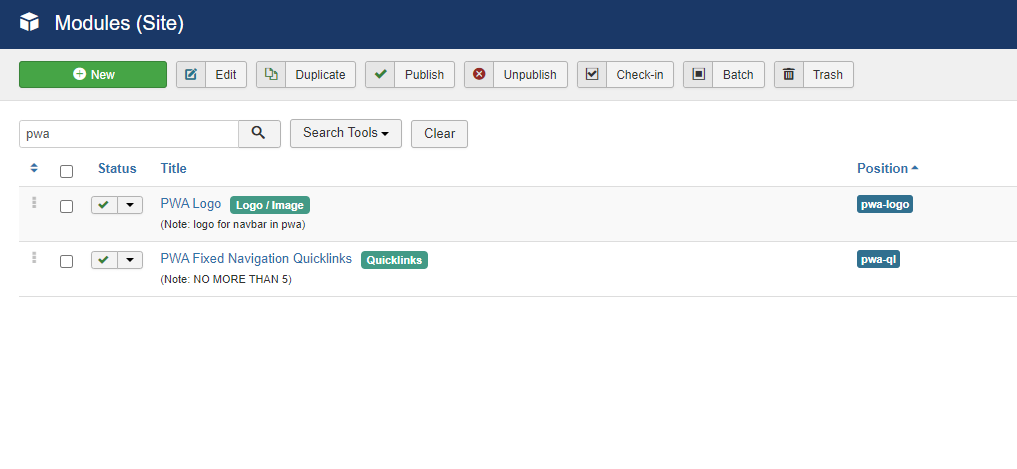
PWA Logo Module
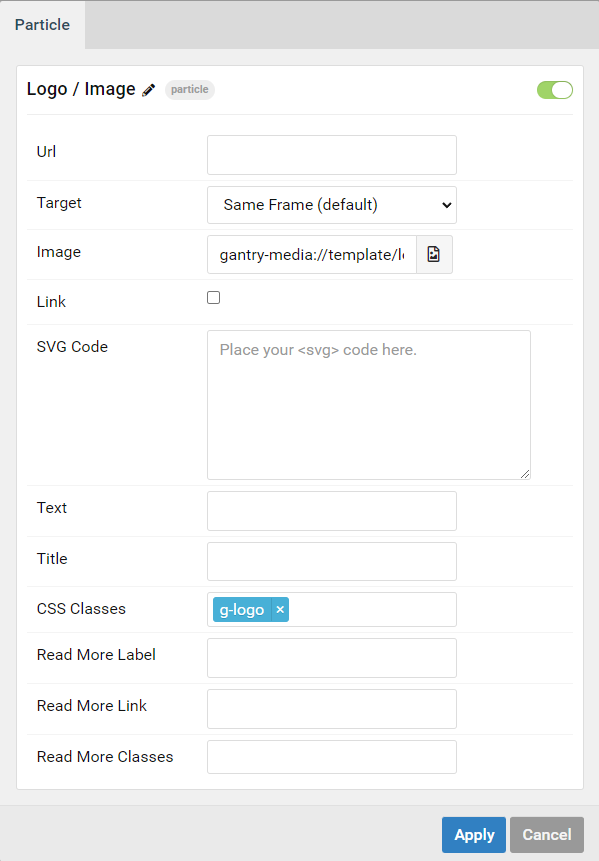
Gantry 5 Particle Module - Logo/Image / Show Title "Hide" / Position "pwa-logo" / Assignment "All Pages".
PWA Menu Quicklinks
Gantry 5 Particle Module - Blockcontent / Show Title "Hide" / Position "pwa-ql" / Assignment "All Pages".