
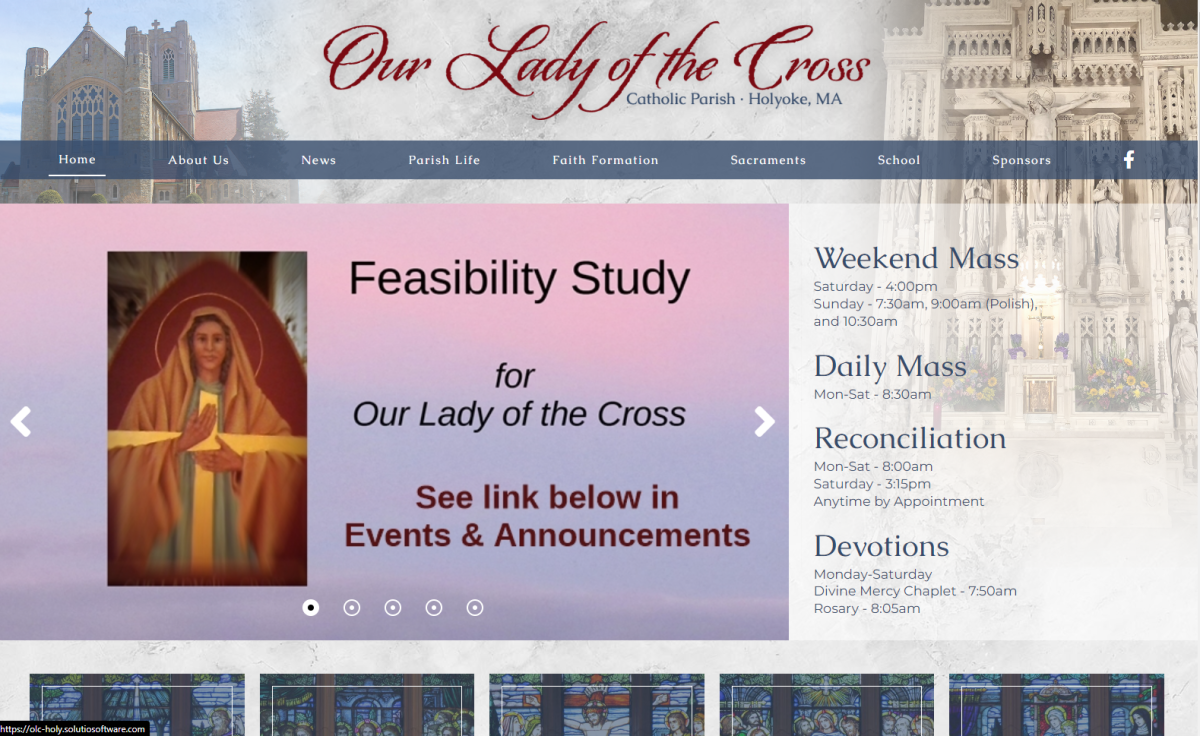
This adds a feature to link the entire rotator to a specific page. To make it work simply format a link in the article as a rotator link.
*Now works with Studius builds past 10/24/25. Some of the older Studius builds may need this added manually.
To add it to an existing site
1. Make sure the swiper particle has the linkable-swiper class
linkable-swiper
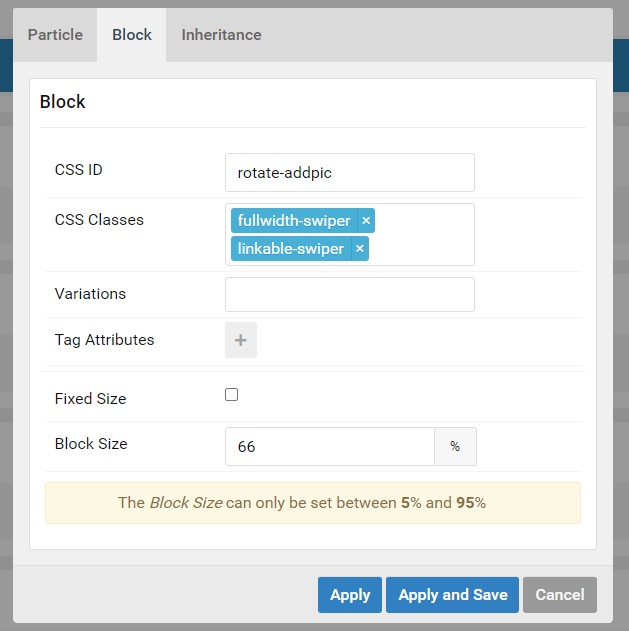
2. update the swiper particle settings to this: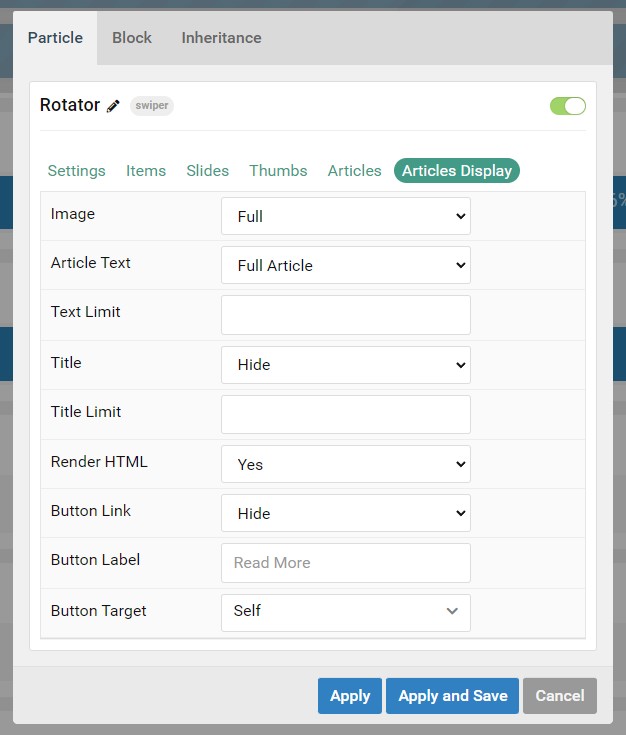
3. Add the rotator link CSS to the editor.css file:
a.rotator-link {
 background-size: cover;
 background-repeat: no-repeat;
 display: grid;
 justify-content: center;
 align-items: center;
 aspect-ratio: 16/9;
 width: 50%;
 border: 2px solid rgb(0, 0, 0);
 background: rgba(241, 241, 241, 0.75);
 font-size: 1.75rem;
 border-radius: 1rem;
 backdrop-filter: blur(2px);
 margin: 2rem auto 1rem auto;
}

.mce-content-body .rotator-link::after {
 content: 'Rotator Link';
 position: absolute;
 top: 10%;
 left: 5%;
 font-size: clamp(2rem, 2vw, 4rem);
 color: red;
}
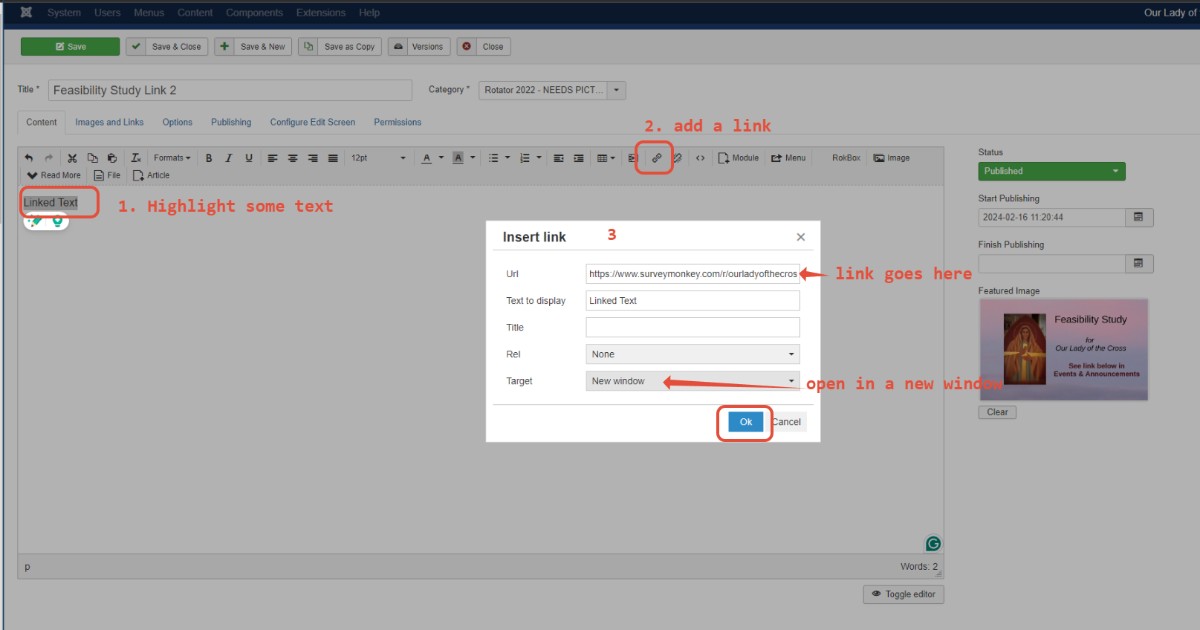
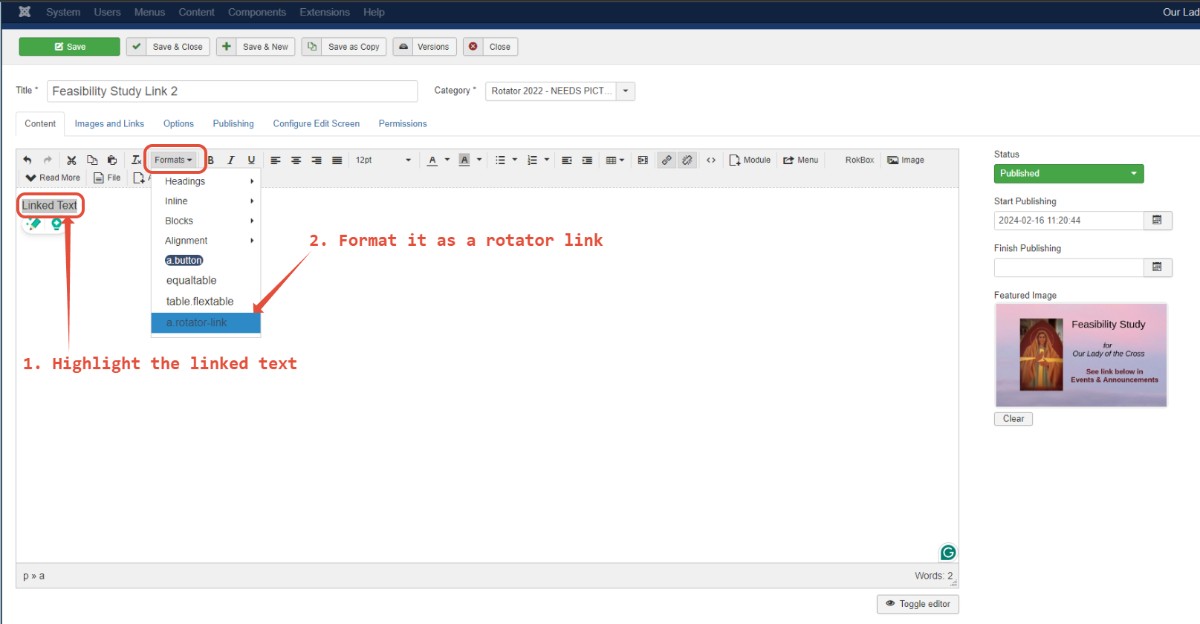
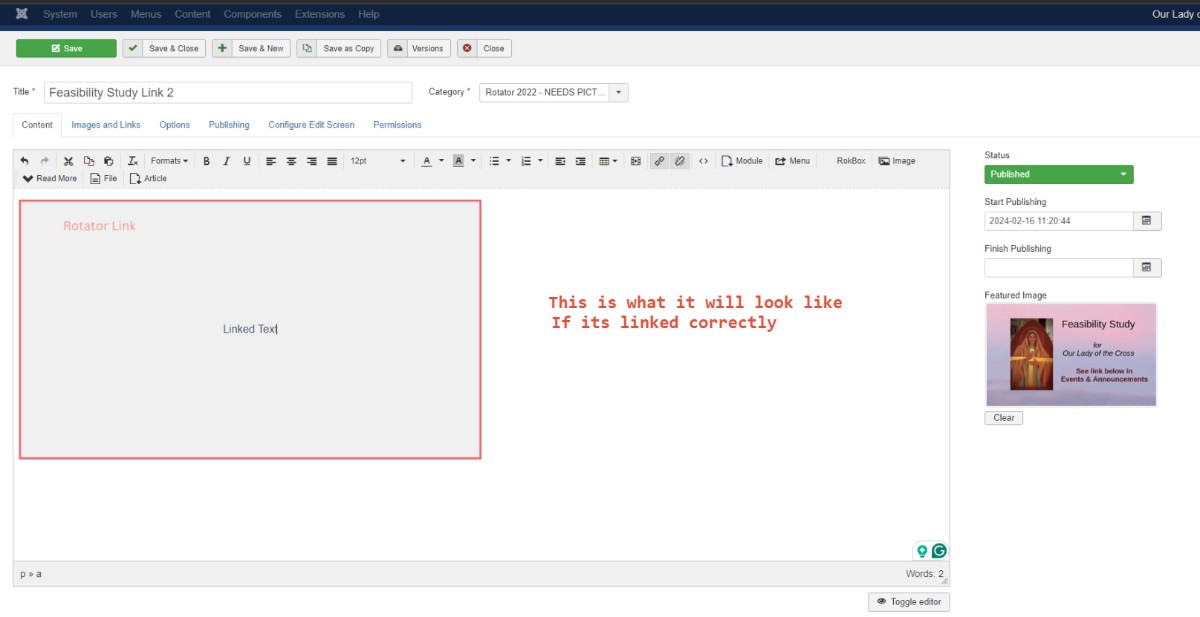
How to add a rotator link:
1. Insert a link into the article (make sure the text is linked)
2. Highlight the link and format it as a rotator link
Here are some screenshots
If it doesn't work add this code to the override css file
/* rotator link code */
.fullwidth-swiper .slide {
 position: relative;
}

.fullwidth-swiper .rotator-link {
 position: absolute;
 top: 0;
 left: 0;
 width: 100%;
 height: 100%;
 color: transparent !important;
}

.fullwidth-swiper div.slide div.slide-content-wrapper div.slide-content div.g-swiper-text a.rotator-link:hover {
 color: transparent !important;
}

#g-slideshow .fullwidth-swiper a.rotator-link:hover {
 color: transparent !important;
}

/* */